Enterprise AI
Dreamforce 2026: What Salesforce’s AI Innovations Mean for Your Business
Dreamforce 2026 put a fundamental question at the centre of the conversation: What happens when AI moves from generating answers to actually...
Read More→
October 30, 2026

The Winter ’27 release introduces several enhancements to Service Cloud designed to improve customer service operations, streamline case management, and help service teams work more efficiently. This release brings updates across Agentforce, Knowledge creation, case management, WhatsApp, voice interactions, and contact center experiences. With new AI-powered tools, automated configurations, and improved customer engagement capabilities, service representatives can resolve issues more effectively while administrators gain greater flexibility in managing service operations. Whether you’re looking to simplify case handling, improve agent productivity, or create more connected customer experiences, these features offer valuable opportunities to get more from Service Cloud.
Set up Enhanced Chat (formerly Messaging for In-App and Web) without manually configuring messaging channels or embedded service deployments. During Agentic Portal setup, the system provisions and deploys Enhanced Chat for you, so your Agentforce Customer Service Portal agent or Help agent is accessible on your site as soon as setup finishes.
Where: This change applies to Aura and LWR Experience Cloud sites accessed through Lightning Experience in Enterprise, Performance, Unlimited, and Developer editions.
How: Enhanced Chat provisioning runs as part of the Agentic Portal guided setup. No separate configuration of Messaging Channels or Embedded Service Deployments is required
Your service reps can draft accurate Knowledge articles from any record, such as cases, incidents, or work orders without writing articles manually. You can build multiple custom prompt templates in Prompt Builder using plain-language instructions and merge fields, so your reps always have a template tailored to the record and scenario at hand. Your reps can pick the right template for each scenario and create articles directly from a record or conversationally through Agentforce from anywhere in the app. Previously, Einstein Knowledge Creation offered a single out-of-the-box template limited to cases and messaging sessions.
Where: This change applies to Lightning Experience in Professional, Enterprise, Performance, Unlimited, and Developer editions with the Salesforce Knowledge add-on license.
How: In Setup, go to the Einstein Knowledge Creation page and turn on Einstein Knowledge Creation, and then turn on Prompt Builder Template. To create a custom prompt template, go to Prompt Builder, select the Knowledge Generation template type, configure the grounding record and inputs, and activate the template.
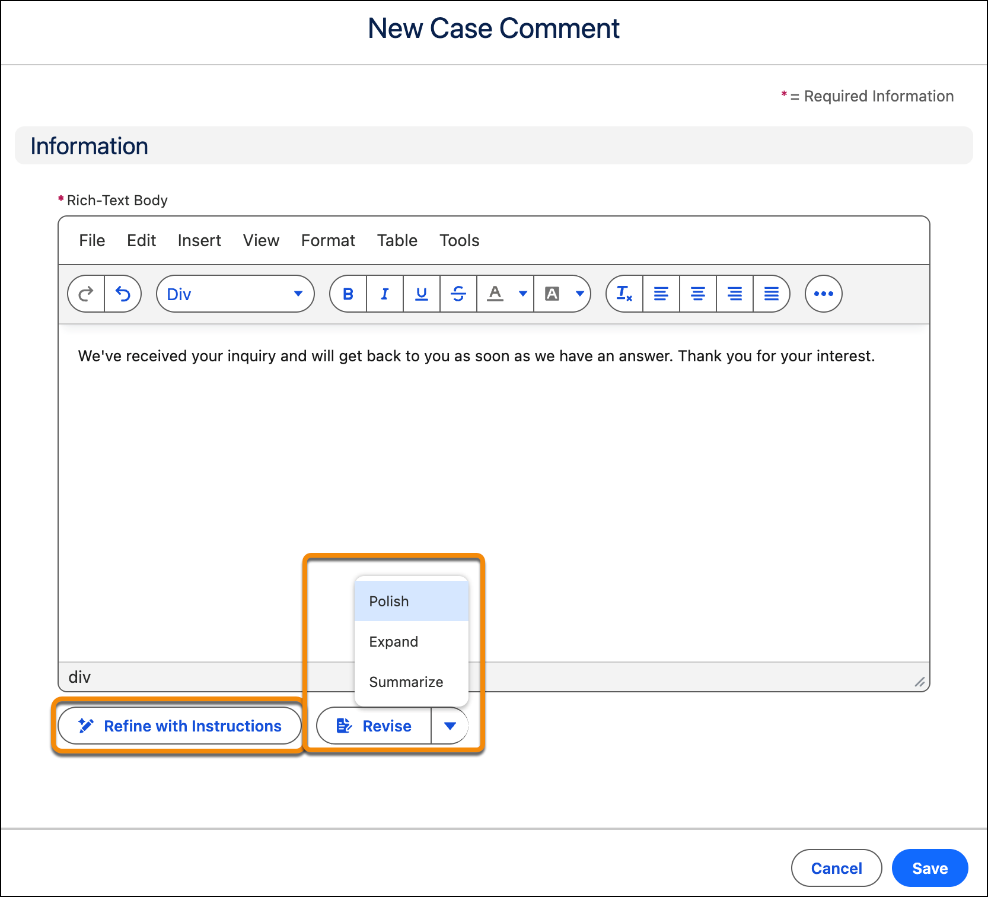
Service reps can now use AI-powered writing tools directly in the case comment editor to polish, expand, or summarize comment drafts while preserving their intended meaning. Reps can also refine comments by entering specific instructions, based on the guidance that admins configure in the Refine Case Comment prompt template. The tools can revise either an entire comment or selected text. This feature helps teams communicate consistently and spend less time editing comments.
Where: This change applies to Lightning Experience in Enterprise, Performance, Unlimited, and Developer editions with Agentforce for Service and Einstein for Service enabled.
Who: Users need the Prompt Template User permission set.
• Turn on Einstein for your org.
• In Prompt Builder, review or edit the instructions in the out-of-the-box Refine Case Comment prompt template.
• In Support Settings, select Agentforce Writing Tools for Case Comments. In the case comment editor, reps click Revise or Refine with Instructions. Reps review the suggested text, and then accept or reject it before posting the comment.

Original case attachments now display directly inline under the Case Description field, eliminating the need to click a button or open a side panel. Reps get immediate context from up to three attachment tiles, with a popover link available to view additional original files. Original attachments include files added in the email subject or case description within the initial case creation timeframe.
Where: This change applies to Lightning Experience in Essentials, Group, Professional, Enterprise, Performance, Unlimited, and Developer editions.
Why: Displaying original attachments directly inline under the description field provides instant context without forcing reps to navigate to the Related List or toggle side panels, improving rep efficiency and workflow.
How: Enable the Show Original Case Attachments checkbox on the Support Settings page. Once enabled, original attachments added within the case creation window display automatically beneath the Case Description field:
• Inline Tile Preview: Displays up to 3 original attachments as visual tiles directly under the description text area.
• Overflow Popover: If more than 3 attachments exist, click the + [X] more link to open a popover displaying up to 5 attachments at a time with a scrollbar for the remaining files.
• View All Attachments: Select the View All Attachments button at the bottom of the popover to navigate directly to the Case Related List for a full file history.


Configure case merging from a consolidated setup page. The revamped setup page brings together settings for Case Merge, Enhanced Case Merge (Beta), and Case Merge for Omni-Channel (Beta). Enhanced Case Merge (Beta) provides access to Duplicate Rules and Matching Rules.
Where: This change applies to Lightning Experience in Enterprise, Performance, Unlimited, and Developer editions.
How: From Setup, enter Case Merge in the Quick Find box, and then select Case Merge. Enable the Enhanced Case Merge (Beta) toggle. Configure duplicate case status preferences, Duplicate Rules, and Matching Rules.
Agentforce Article Recommendations for Cases now identifies up to three distinct intents when a case raises more than one problem. Agentforce builds a targeted search for each intent, and merges the results into a ranked list of articles for your agents to use in their response. Previously, a single search query built from the whole case let the most prominent topic crowd out articles for other issues the customer mentioned.
Where: This change applies to Lightning Experience in orgs with Data Cloud provisioned and Agentforce Article Recommendations for Cases already enabled.
When: Multi-Intent Detection becomes available only after Salesforce activates it in your org. If you don’t see the Enable Multi-Intent Detection toggle in Setup, contact your Salesforce account team to confirm activation.
How: In Setup, go to Service > Einstein > Einstein Article Recommendations for Cases, and confirm that you’re using the Get Recommendations on Cases flow. Turn on Enable Multi-Intent Detection, then save your changes.
Multi-Intent Detection isn’t available in orgs using the Get Generative AI Recommendations for Cases flow instead.
Replace repetitive queue music with a configurable In-Queue Experience flow. Play custom prompts, share real-time position-in-queue (PIQ) and estimated wait time (EWT), or offer callbacks—all without affecting queue position, skill matching, or priority. Configure the flow to deliver tailored wait experiences across different routing paths, with playback stopping as soon as a rep becomes available. Reduce caller abandonment and improve customer confidence with a more engaging and informative wait experience.
Who: To configure an In-Queue Experience Flow, you need the Agentforce Contact Center Admin (Salesforce Voice) permission set.
Preserve customer context by transferring voice calls directly to Omni-Channel flows from active calls or inbound channels. Guide callers through automated IVR prompts, collect keypad inputs, and seamlessly enable interactions to queues, internal reps, or PSTN numbers such as third-party specialists or secure payment authority (like PCI Pal). Reps can initiate warm or cold transfers to a flow, or route calls automatically to an external number. Protect sensitive customer data during payment capture using granular Dual-Tone Multi-Frequency (DTMF) suppression rules that allow or block keypad tones per participant, keeping card details hidden from representatives, call legs, and recordings.
Eliminate manual workarounds and improve caller satisfaction with seamless automated experiences.
Who: To configure warm transfers to flows, you need the Agentforce Contact Center Admin (Salesforce Voice) permission set.
Route inbound WhatsApp conversations to voice calls on Conversational Messaging WhatsApp channels. If you’re already using Unified Messaging or if you’re migrating from Agentforce Contact Center Digital, you won’t lose your escalation path. Activate a voice channel directly from your WhatsApp channel settings, and calls can be routed to Agentforce agents or land in Omni-Channel like any other work item.
Where: This change is available in Lightning Experience with AFCC Digital Unlimited Edition or AFCC Digital Enterprise Edition. Unified WhatsApp is available with Enterprise and Unlimited Editions for Service Cloud; Growth or Advanced Editions Marketing Cloud Next; or Pro+, Corporate+, and Enterprise+ Editions for Marketing Cloud Engagement.
How: From your WhatsApp channel detail page, use the Create Voice Channel banner, or activate voice with a single toggle in Messaging Settings. If you had voice enabled on a Digital Engagement WhatsApp channel, disable voice there before migrating the channel to UCP, and then enable voice again once the channel is in UCP. If you’re activating voice on a UCP WhatsApp channel for the first time, refresh the connection first to add the voice user to your WhatsApp Business Account, and then create and activate the voice channel.
Confirm the availability of your Service WhatsApp phone number, WhatsApp Business Account (WABA), Business and Salesforce App at the new WhatsApp Business Profile page in Salesforce. Additionally, review details about the phone number and business profile associated with your Service WhatsApp channel. Previously, you had to check your Meta account or query via an API to find these details.
Where: This feature applies to Service WhatsApp. View required editions.
How: Open your WhatsApp channel from the Messaging Settings Setup node. Click WhatsApp Business Profile, and review your profile details.
When a customer submits a WhatsApp Flow form after their messaging session ends, Salesforce now captures the response instead of discarding it. The response saves to the designated record and appears in the Service Console as a reply to the original form request. Previously, a form response submitted after the session ended wasn’t captured, so the customer’s input didn’t reach your team.
Where: This change applies to enhanced WhatsApp channels, including channels set up with Unified Messaging. View required editions.
How: Salesforce captures the response automatically, with no setup required. Because the response arrives after the session ends, it isn’t routed to a service rep. In the Service Console, the response appears as a reply to the original form request to maintain the full context. Service reps aren’t notified about this.
Delete case milestones in bulk through Data Loader or programmatically via Apex to reclaim data storage consumed by outdated milestone records. Previously, milestone records accumulated indefinitely on cases, with no supported way to delete them. This resulted in higher storage costs for high-volume organizations. Now, you can delete outdated milestones, such as when a case is reclassified and earlier milestones become irrelevant.
Where: This change applies to Lightning Experience and Salesforce Classic in Professional, Enterprise, Performance, Unlimited, and Developer editions.
How: Admins can delete milestones directly with Data Loader or Apex.
The Winter ’27 release brings meaningful improvements to AI-assisted service, case management, and customer engagement. Features such as AI-powered Knowledge creation, Multi-Intent Article Recommendations, and automated WhatsApp and voice interactions can help reduce manual effort and improve service efficiency.
At LevelShift, we believe organizations should prioritize the updates that address their existing service challenges. With the right data, integrations, and governance in place, these enhancements can help build more connected, efficient, and AI-enabled customer service operations.
The Winter ’27 Service Cloud release delivers practical enhancements that benefit both service representatives and administrators. From automated Agentic Portal setup and AI-powered Knowledge creation to improved case management, WhatsApp integration, and enhanced voice experiences, these updates help organizations simplify service operations and improve customer interactions.
By adopting the features that align with their business priorities, organizations can reduce manual effort, strengthen service consistency, and make better use of Salesforce’s AI capabilities. The key is to combine these platform enhancements with the right data, integrations, and governance practices to build scalable customer service experiences.

Urmi Mukherjee is a Senior Content Writer in the Salesforce practice at LevelShift, specializing in enterprise AI, customer experience transformation, and Salesforce innovation. She develops strategic content that helps business leaders understand emerging trends, modernize operations, and drive measurable outcomes through Salesforce-powered solutions.

I spent three days at Dreamforce 2026 moving between agent sessions and conversa...

Customers expect brands to respond to their behavior, context, and intent, not j...

Your Agentforce demo went well. The agent answered questions, pulled up informat...
Dreamforce 2026: What Salesforce’s AI Innovations Mean for Your Business
Dreamforce 2026 put a fundamental question at the centre of the conversation: What happens when AI moves from generating answers to actually...
Dreamforce 2026 Day 1 Recap: AIforce, Agentforce, Autonomous IT, and AI Skills
Dreamforce’26 is underway in San Francisco, with AIforce and the broader shift toward agentic AI taking center stage in the Day 1 keynote. S...

Who Approves the Agent? What Slack Code Means for Human Oversight in Salesforce Programs
Salesforce recently launched Slack Code: tag a coding agent in any conversation and it opens a dedicated channel where the whole team watche...